Keep a Product Identical Across Every AI Ad Shot
For a consistent product in AI video, make one product reference sheet from real photos, use it in every shot, and keep logos and label text as stills.
By Hyperdream Team7 min read
To keep a product identical across AI ad shots, fix it as a picture before you render any video. Make one product reference sheet from real photos, showing every side and the details, and attach it to every shot the product is in. Then keep the things that must be exact, the logo and the label text, as stills. A sheet holds the shape, colour and look of a product well. It does not make small text reliable.
Key takeaways
- One sheet per product: every side and the details, drawn from your real photos.
- Start clean: "Remove background" cuts a product out of a photo for 1 credit (checked 10 November 2026).
- Logos and label text are where models slip. In our 30-second client ad, the logo is a still frame: 1 shot of 8.
- Six of the ten video models take reference pictures: up to 10 on Gemini Omni 1.2, 9 on MiniMax H3 Max and Wan 3.0, 4 on Kling O3 Pro and both Seedance models.
- Check in stills. A wrong label costs 2 credits to fix in a still and a whole render to fix in video.
Why does a product change between AI shots?
A video model has no memory. Each shot is a new request, and anything you only described in words is imagined again.
"A green glass bottle with a gold cap" describes thousands of bottles. The first shot gets a tall one. The second gets a squat one with a different label. People have the same problem, and the fix is the same. See how to keep characters consistent.
A product is harder than a person in one way. A viewer forgives a face that is nearly right. Nobody forgives a logo that is nearly right, least of all the client.
What is a product reference sheet?
A product reference sheet is one image that shows a single product from every side, plus its details. In practice that means the front, the back, both sides, the top, and close views of the parts a viewer knows it by: the label, the cap, the texture, the logo.
It does the job a character reference sheet does for a person, and a place sheet does for a room. See how to keep locations consistent.
One point is easy to miss. Your uploaded photos are what the sheet is drawn from. They are not the reference itself. The sheet is what the shots use.
What photos should you start from?
Real ones. A sheet drawn from a description is a guess at your product.
- Shoot every side. Front, back, both sides, top and base.
- Shoot the label straight on, close enough to read every word.
- Use plain, even light. No coloured gels, no hard reflections. Mood belongs in the shot.
- Use a plain background, or cut the product out. "Remove background" costs 1 credit an image.
- One product per sheet. Two variants on one sheet get blended. Give each flavour or colour its own sheet and its own name.
How do you make the sheet in Hyperdream?
In Director (Pro and up), open the Places step. It holds the film's locations and products.
- Add the product and write its description: what it is, its size, its materials and colours, and what is printed on it.
- Add your photos as the pictures to draw from.
- Make the reference sheet. In Agent mode Director can make it and shows the cost first. In Plan mode it proposes and waits.
- Check it against the real product. Read the label letter by letter. Compare the logo, the cap colour and the proportions.
- Fix by editing, not by rolling again. Draw a mark on the wrong part, ask for that one change, and keep the version you approve. Every edit is a new version, so the earlier one is still there.
- Send it to the client with Share for review before any video is made.
In Create (every plan), choose Image, set "What is it" to Product, add your photos as references and describe the sheet. A prompt to start from, written for this post and not tested:
Product reference sheet of [product], from the attached photos. Front, back, left side, right side and top, on a plain white background. One panel of close details: the label, the cap, the logo. Same colours, proportions and label in every panel. Even light, no props, no extra text.
The result lands in your Library. Add it as a reference in later prompts and mention it with @name. The same flow for people is on the AI character generator page.
Where do models slip?
These are the misses to expect. They are general behaviour of today's image and video models, not a test of any one of them.
| What slips | Why | What to do |
|---|---|---|
| Small label text | Letters are redrawn in every frame | Keep the pack far enough that text is not meant to be read, or use a still |
| The logo | Exact curves and spacing drift | Keep the logo as a still frame or an end card |
| A label on a turning pack | The model invents the part it has not seen | Don't rotate the pack in the shot. Cut to a new angle |
| Size in a hand | Scale is guessed each time | Put the size in the description, and check each still |
| Glass, liquid and shine | Reflections are made up | Simple light, slow moves, more takes |
| Counts | Buttons, ports, segments | Check the still. Say the number in the shot |
Two image models are noted for text. Our staff notes say Nano Banana Pro is for "legible text" and GPT Image 2.5 for "long, exact prompts and text". That helps on a still. It does not carry into video.
How do you shoot the product so it holds?
- Check every still first. The Storyboard step draws a still per shot before video. Look at the product in each one.
- Use reference pictures where the model takes them. Six of the ten video models do. The limit is per shot, so two character sheets, a place sheet and a product sheet fill a 4-picture model.
- For the other four models, start from a frame. MiniMax H3, FLUX 3 Max, Kling 4.0 and Grok Imagine 1.5 take no reference pictures. Draw the first frame as a still with the product sheet and render from it. The difference is explained in what is reference-to-video?
- Land on a frame you approved. Eight of the ten models take an end frame. Using an approved still as the last frame gives the shot a fixed place to arrive. We have not measured how much this helps a label. See start and end frames.
- Keep product shots short and the camera slow. A slow push on a still pack gives the model less to reinvent than a hand spinning it.
- Keep exact things as stills. The pack shot, the logo, a price, legal lines. In the Edit step you can add text and an end card.
Where the product sits in a 30-second structure is in how to make an ad with AI.
What does our own record show?
We have not yet published a client film built around a packaged product, so we have no label hits and misses to show. What our records do show is about logos and text.
- A logo kept as a still. In a 30-second ad for Shilp Group, made in November 2026, the client's logo file was stored in the film as a product. The ad has 8 shots: 7 are video and the logo is a still frame.
- Real material fixed the first pass. That ad's first pictures were wrong for the client. They were redrawn after 8 screenshots of the client's real buildings were added. Every video render but one was given 1 to 7 reference pictures.
- Text in a moving picture was dropped. On a mantra video, we tested golden verse text on screen and dropped it.
- Text on a still worked. On the same project, album art was made from a film frame plus the client's logo.
It is a small record. It points one way: exact marks belong in stills.
What does it cost?
Read from the live model list on 10 November 2026:
| Step | Credits |
|---|---|
| Remove background from a product photo | 1 an image |
| A sheet on Nano Banana 2.1 (up to 10 reference pictures) | 2 an image |
| A sheet on Nano Banana Pro (up to 8 reference pictures) | 5 an image |
| Upscale a still to 4K | 1 |
| Video | 2 to 9 a second at default size, by model |
Budget for a few tries at the sheet. It is the cheapest place in the film to be fussy.
When should you use the real pack?
- Regulated packs. Medicine, food labels, anything where every word is checked. Use a photo or real footage for the pack shot.
- An exact brand colour. A model gets close. A photo is exact.
- Readable small print. Add it as text in the edit.
- A close, slow turn of the product. That is a job for a camera or a 3D render.
Many ads mix the two: AI shots for the story, and the real pack for the last three seconds.
How we checked
Hyperdream's steps, model limits and prices were read from the product and its live model list on 10 November 2026. The Shilp and mantra facts come from those projects' records. We publish no product sheet image here, and we have not run a test of shots with and without a product sheet, so we make no claim about how many re-rolls a sheet saves. The table of slips describes how current models tend to behave in general. The example prompt is untested.
Questions people ask
Make one reference sheet for the product from real photos before you render any shot, approve it, and attach it to every shot the product is in. Check the product in each still frame before video, and keep anything that must be exact, such as the logo and label text, as a still.
Keep reading
Guides20 November 20267 min read
Two Characters in One AI Shot Without Mixed-Up Faces
How to get multiple consistent characters in one AI video shot: a sheet each, names in the prompt, a still frame first, and the reference limits by model.
Guides18 November 20267 min read
Keep Locations Consistent in AI Video With Place Sheets
For a consistent location in AI video, make one place sheet (the wide, the reverse, the middle, the details) and attach it to every shot set there.
Guides13 November 20267 min read
How to Turn a Finished Song Into an AI Music Video
Make a music video from a song with AI: upload the track, fix the singer with a reference sheet, plan shots to the beat by hand, and know the limits.
More than images and video
Scripts, storyboards, motion, and characters in every version. Each one on its own, or all of them in a film.
Write a script
An idea in, a properly formatted screenplay out. Edit any line, then board it or film it.
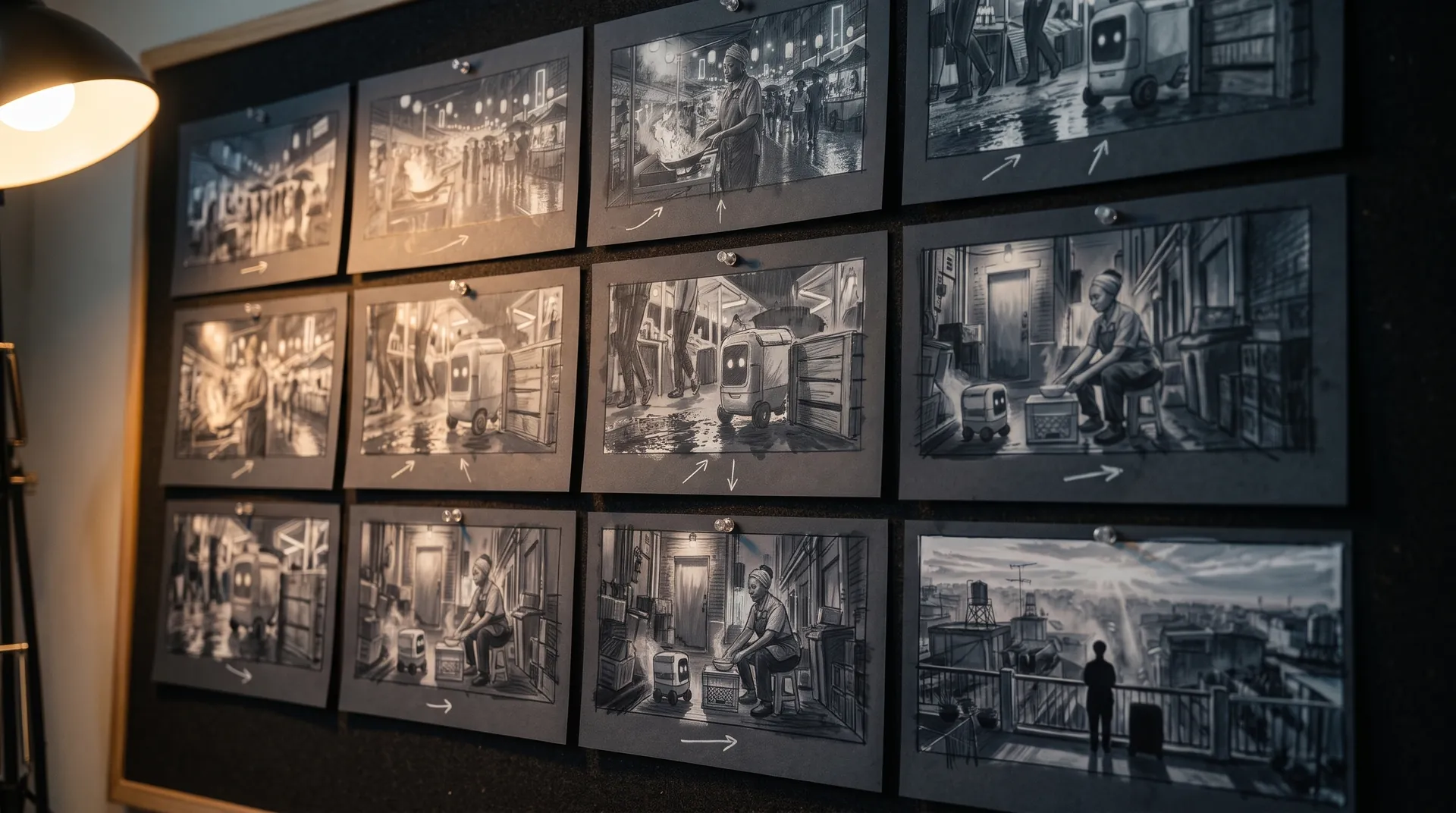
Board a storyboard
A panel for every shot, as AI stills or quick vector frames. Export it as a pitch deck.

Make motion
Titles, explainers and moving storyboards, drawn as vector animation by the AI you pick.
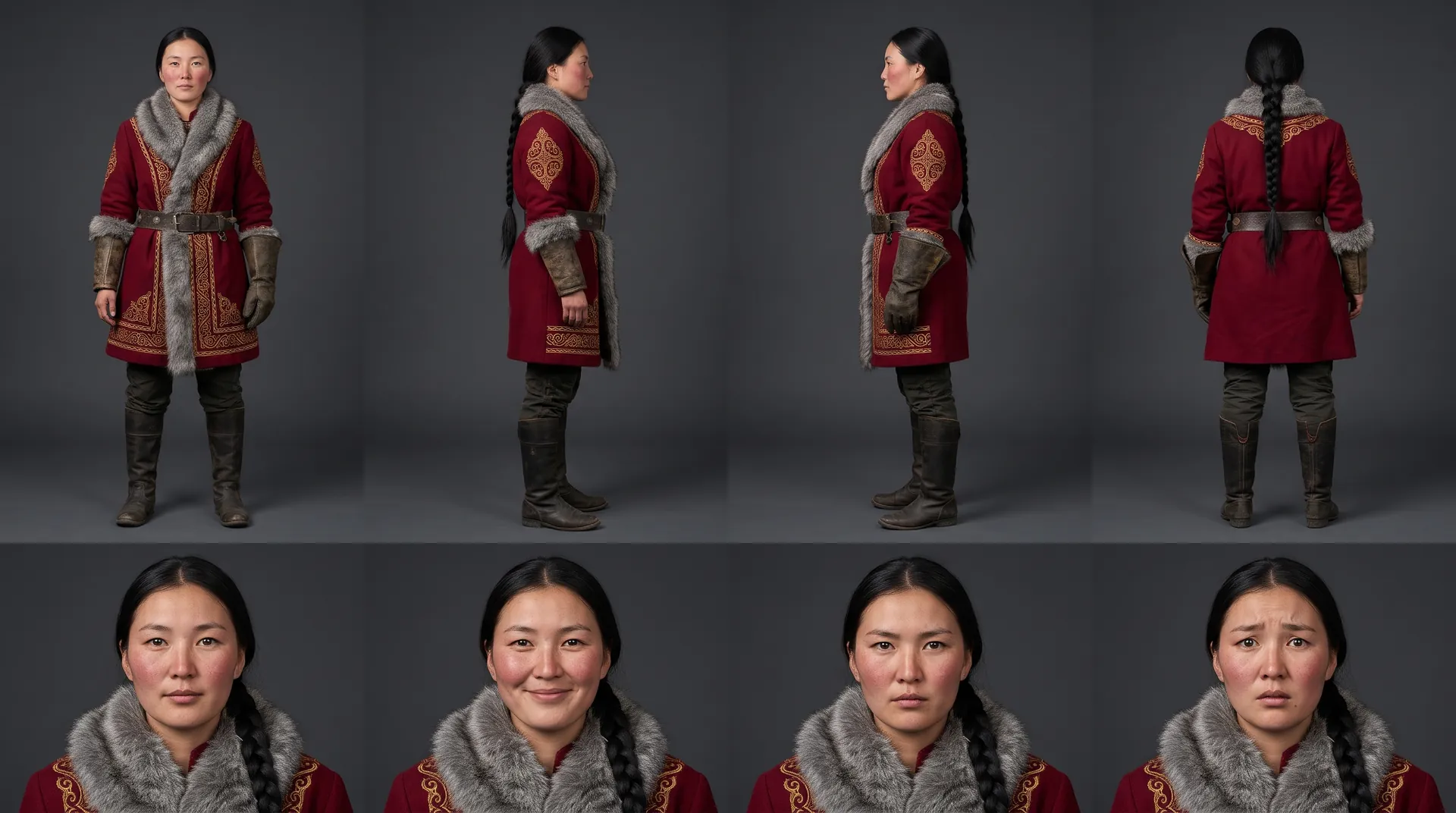
Characters, places, products
One subject in many versions, or new ideas for it. Every angle, look and light.
Your first film is one sentence away.
Free to start. Pay only for what you render.