Keep Locations Consistent in AI Video With Place Sheets
For a consistent location in AI video, make one place sheet (the wide, the reverse, the middle, the details) and attach it to every shot set there.
By Hyperdream Team7 min read
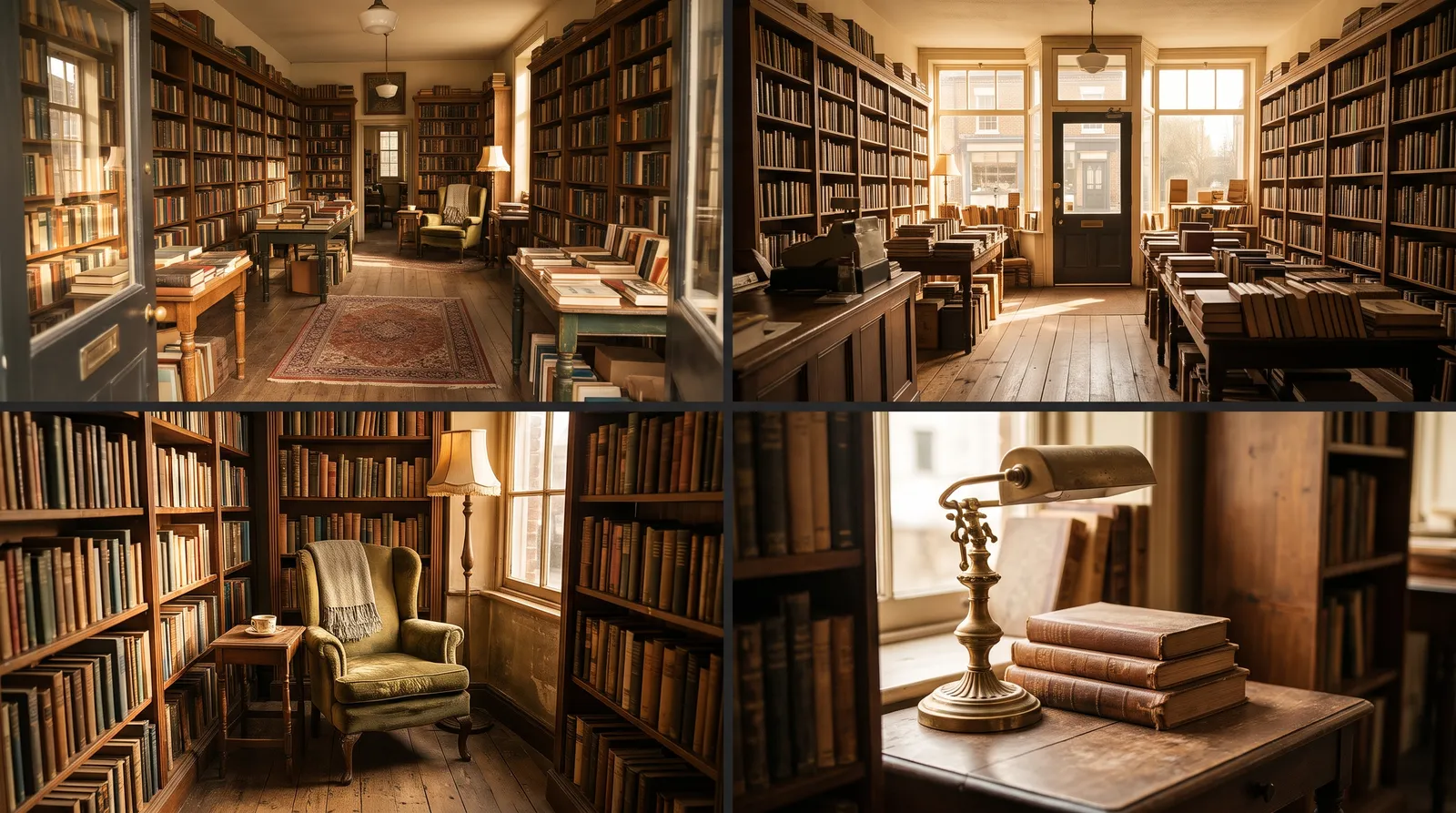
To keep a location consistent in AI video, fix the place as a picture before you render any shot. Make one place sheet that shows it four ways (the wide, the reverse, the middle and the details), approve it, and attach it to every shot set there. The model then copies a known place and stops inventing a new one each time.
Key takeaways
- One sheet per place, four views: the wide, the reverse, the middle and the details.
- Few places. Two client films of 9 and 22 shots used four places each.
- Real pictures help. On a 30-second ad for an apartment builder, the places only came right after 8 screenshots of the client's own buildings were added.
- Models differ. Gemini Omni 1.2 takes up to 10 reference pictures, MiniMax H3 Max and Wan 3.0 up to 9, Kling O3 Pro and both Seedance models up to 4 (checked 10 November 2026).
- A sheet narrows drift. It doesn't end it. Our four measured films still took 1.8 to 4.4 video renders per finished shot.
Why does a location change from shot to shot?
A video model has no memory. Each shot is a new request, and anything you only described in words gets imagined again.
"A small bakery at dawn" describes thousands of bakeries. The first shot gets one with a blue door. The second gets a green door and a window on the other wall. A room that changes between cuts reads as a different room.
Two kinds of shot make it worse:
- The reverse angle. You turn the camera around to show the other person. The model has never seen that wall, so it makes one up.
- A change of time. The same garden at night comes back as another garden.
Characters have the same problem, and the fix is the same. See how to keep characters consistent.
What is a place sheet?
A place sheet is one image that shows a single location from every side you will need. It has four parts:
| View | What it shows | Which shots need it |
|---|---|---|
| The wide | The whole place from its main angle | Establishing shots |
| The reverse | The view looking back the other way | Reverse angles, over-the-shoulder shots |
| The middle | Closer in, at the distance most of the scene plays | Medium shots, two-shots |
| The details | Close views of surfaces and objects: a door handle, the tiles, a sign | Inserts and close-ups |
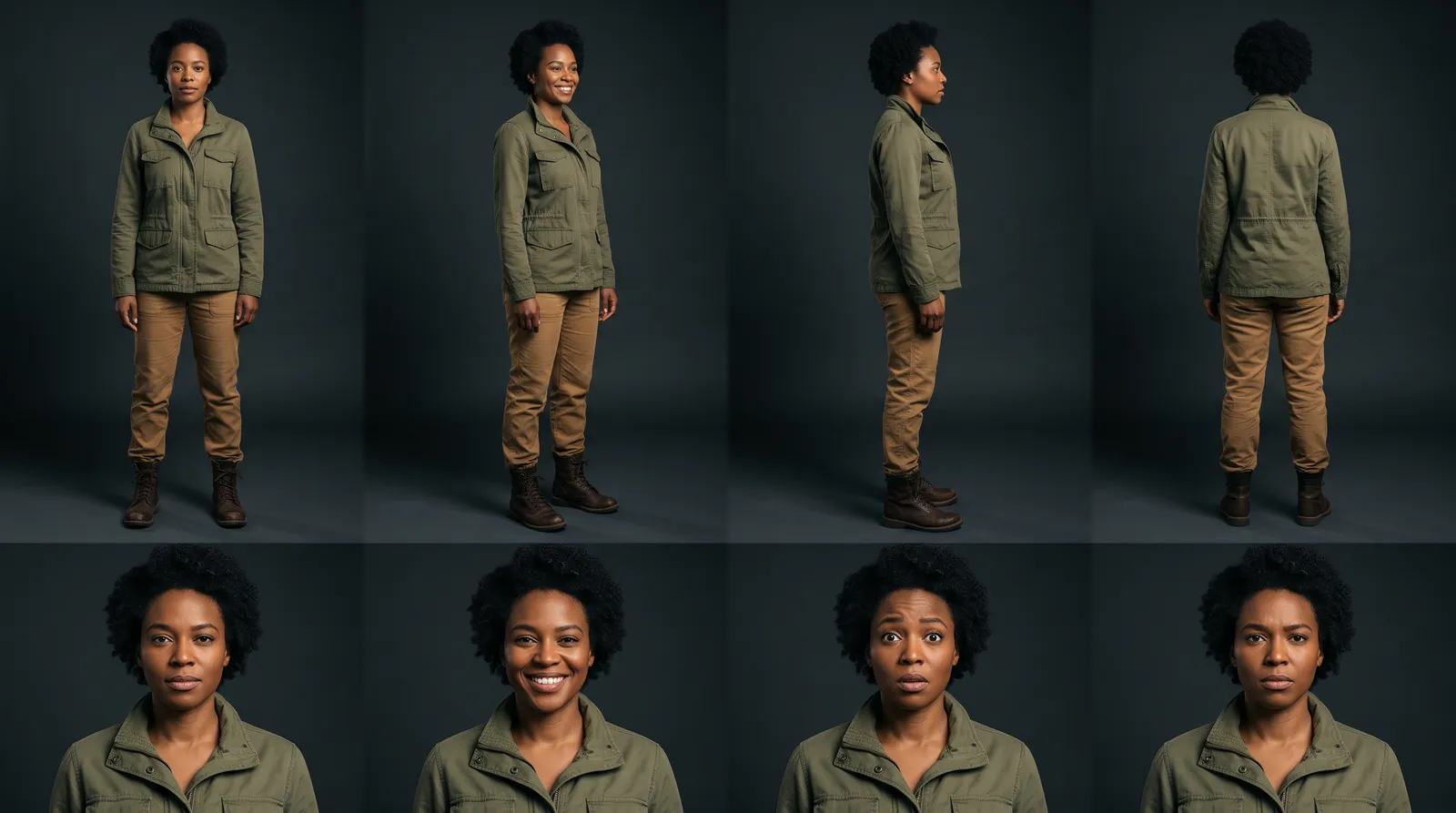
It is the same idea as a character reference sheet, which shows a person in four full-body views and four expressions.
What goes on a good place sheet?
- One place only. Two rooms on one sheet get blended.
- No people. Characters have their own sheets.
- Fixed things in fixed spots. The door, the window, the counter. A viewer recognises the room by them.
- Plain, even light. Mood belongs in the shot. A neutral sheet serves a dusk scene and a noon scene.
- No text labels. Models sometimes copy them into the shot.
How do you make one, step by step?
-
Write the place in five lines. What it is. The layout: what is on the left, the right and the back wall. Materials and colours. Where the light comes from. One landmark that never moves.
-
Gather pictures to draw from, if you have them. Photos of the real site, a client's brochure shots, an earlier design. These guide the sheet. They are not the sheet.
-
Ask an image model for the sheet. Use a model that takes reference pictures. A prompt to start from:
Location reference sheet of [description]. Four panels: a wide view of the whole place, the reverse view looking back from the far end, a closer view of the middle of the room, and a panel of details. Same furniture, colours and layout in every panel. Even daylight, no people, no text.
-
Check it like a set. Is the door in the same place in the wide and the reverse? Do the colours match?
-
Fix by editing. If three panels are right and one is wrong, ask for that one change. A fresh roll changes the good panels too.
-
Approve it and stop. If the story needs the place wrecked or redecorated, make a second sheet and name it clearly.
-
Use it in every shot. Attach the sheet to every still and every clip set there, and call the place by the same name each time.
What does this look like on real films?
A 22-shot film with four places. Our second film for BCVPL has seven scenes and 22 shots. All of them play in four places: the Manufacturer's Office, the Established Furniture Manufacturing Floor, the MAHA-GFC Connected Business Campus and the MAHA-GFC Export Logistics Corridor. Each place got a reference image before any shot was rendered. That was August 2026, when the app kept a single image per place. Today a place gets a sheet. The film took 1.8 video renders per finished shot. We can't prove the fixed places caused that. See the MAHA-GFC case study.
An ad where the first places were wrong. A 30-second Diwali ad for Shilp Group, an apartment builder, has five homes and a shared garden. The first stills came back as a bungalow and cramped rooms. The team added 8 screenshots of the client's real buildings as pictures to draw from, and the places were redrawn. The mistake was caught in stills, where a fix costs a couple of credits, and not in video.
The garden appears twice in that ad: in the first scene in the late afternoon, and in the last scene at night.
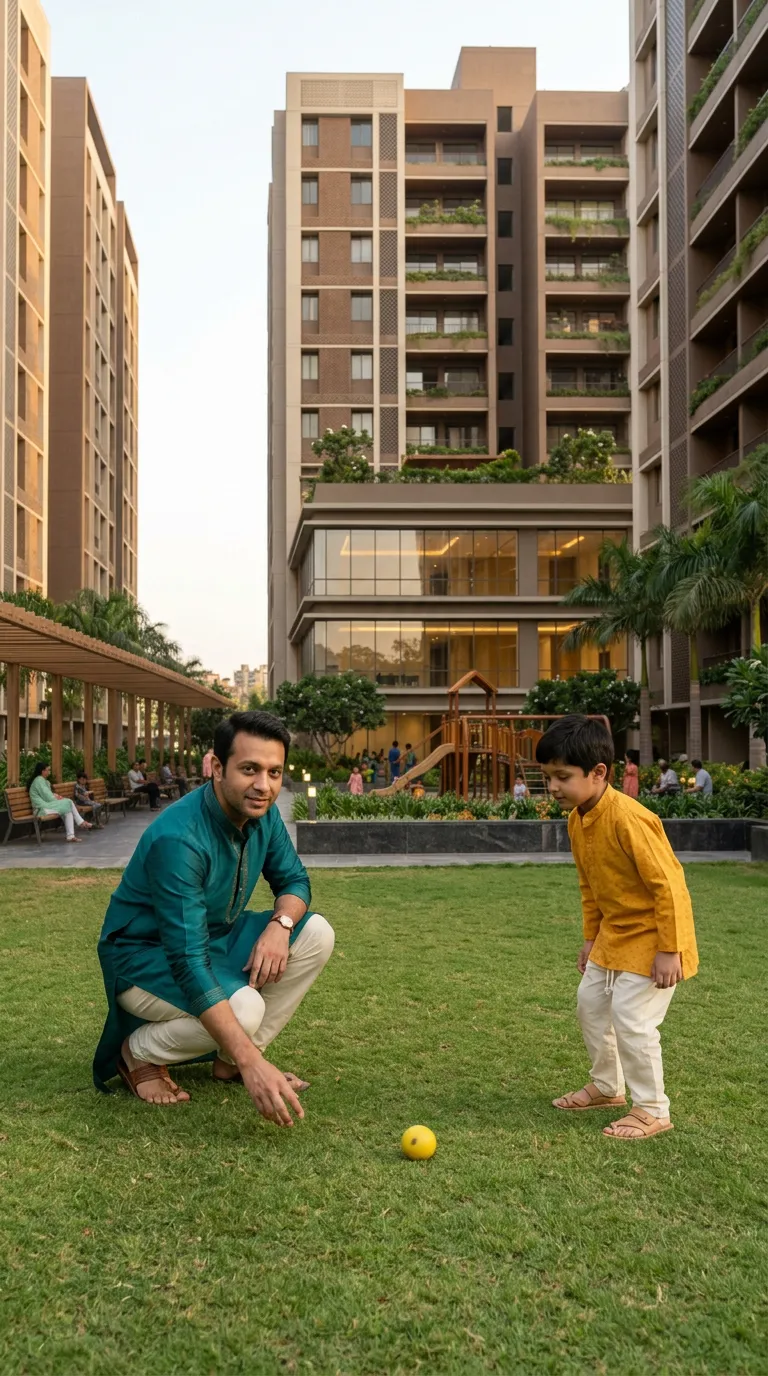 Scene 1 of the Shilp ad: the residential garden in the late afternoon.
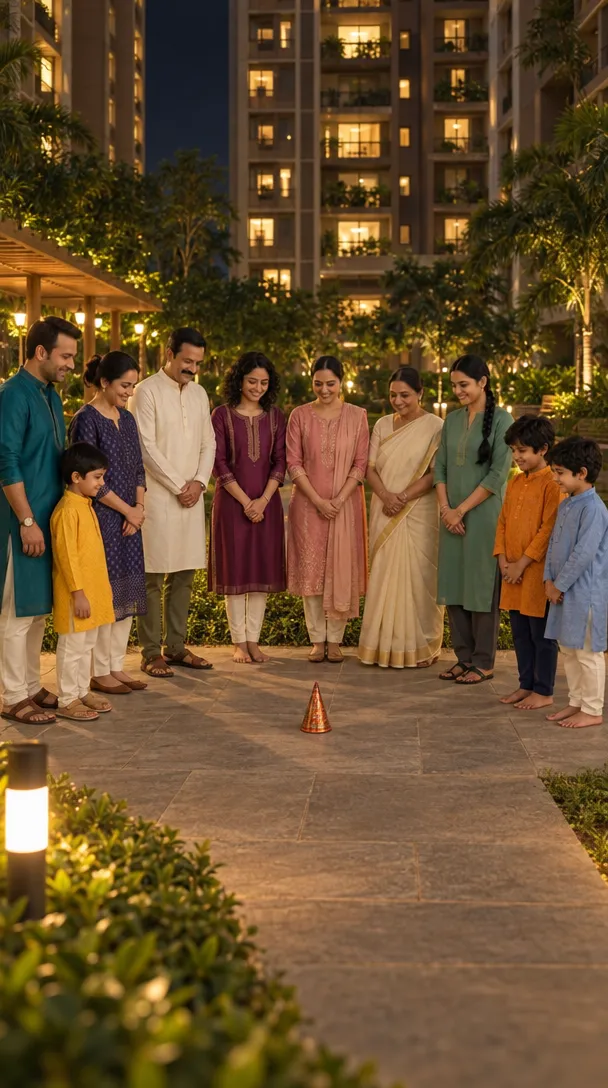 Scene 7: the same garden at night.
Look at what holds: the towers, the pergola on the left, the planting. Look at what moved: one frame stands on a lawn, the other on a stone path. That is an honest picture of what a place reference does. More in the Shilp case study.
How do you do it in Hyperdream?
In Director (Pro and up), open the Places step. It holds the film's locations and products, and each one gets one reference sheet.
- Add the place and write its description.
- Add the pictures you want it drawn from. The sheet, not your upload, is what the shots use.
- Make the reference sheet. In Agent mode, Director can make it and shows the cost first. In Plan mode it proposes and waits.
- Look at the four views, ask for changes, and keep the version you approve.
- Go on to Storyboard, which draws a still for every shot, and then Shots, which renders the video.
In Create (every plan), choose Image, set "What is it" to Location, and describe the sheet. The result lands in your Library. Add it as a reference in later prompts and mention it with @name. An image costs 2 credits on Nano Banana 2.1, which takes up to 10 reference pictures (checked 10 November 2026). The same flow for people is on the AI character generator page.
Which video models can use a place reference?
Six of the ten video models take reference pictures: Gemini Omni 1.2 (up to 10), MiniMax H3 Max and Wan 3.0 (up to 9), and Kling O3 Pro, Seedance 2.0 and Seedance 2.5 (up to 4). The limit is per shot, so two character sheets and a place sheet use three of the slots.
MiniMax H3, FLUX 3 Max, Kling 4.0 and Grok Imagine 1.5 take none. For those, draw the shot's first frame as a still with the place sheet, then render the clip from that frame. What is reference-to-video? explains the difference.
Where does a place sheet stop helping?
- Exact geography. The sheet holds the look of a place better than its floor plan. Check each still for where the door is before you render video.
- Big changes of light or weather. State them in the shot and expect extra takes.
- Crowded reference slots. On a 4-picture model, two characters, a product and a place fill every slot.
- Re-rolls. A sheet does not remove them.
How we checked
Hyperdream's steps, model limits and prices were read from the live product and its model list on 10 November 2026. The film facts come from the projects' own records. The BCVPL films used one reference image per place, not today's four-view sheet. We do not publish a place sheet image here, so the two frames above show a place held across two shots, not the sheet itself. We have not run a test of shots with and without a place sheet, so we make no claim about how many re-rolls it saves.
Questions people ask
Make one reference sheet for the place before you render any shot, approve it, and attach it to every shot set there. Use the same name for the place every time. For a model that takes no reference pictures, draw the shot's first frame with the sheet and render from that frame.
Keep reading
Guides20 November 20267 min read
Two Characters in One AI Shot Without Mixed-Up Faces
How to get multiple consistent characters in one AI video shot: a sheet each, names in the prompt, a still frame first, and the reference limits by model.

Guides13 November 20267 min read
How to Turn a Finished Song Into an AI Music Video
Make a music video from a song with AI: upload the track, fix the singer with a reference sheet, plan shots to the beat by hand, and know the limits.
Guides10 November 20267 min read
How to Make a Character Reference Sheet for AI Video
A character reference sheet for AI video shows one character in four full-body views and four expressions. How to make one, check it and use it in every shot.
More than images and video
Scripts, storyboards, motion, and characters in every version. Each one on its own, or all of them in a film.
Write a script
An idea in, a properly formatted screenplay out. Edit any line, then board it or film it.
Board a storyboard
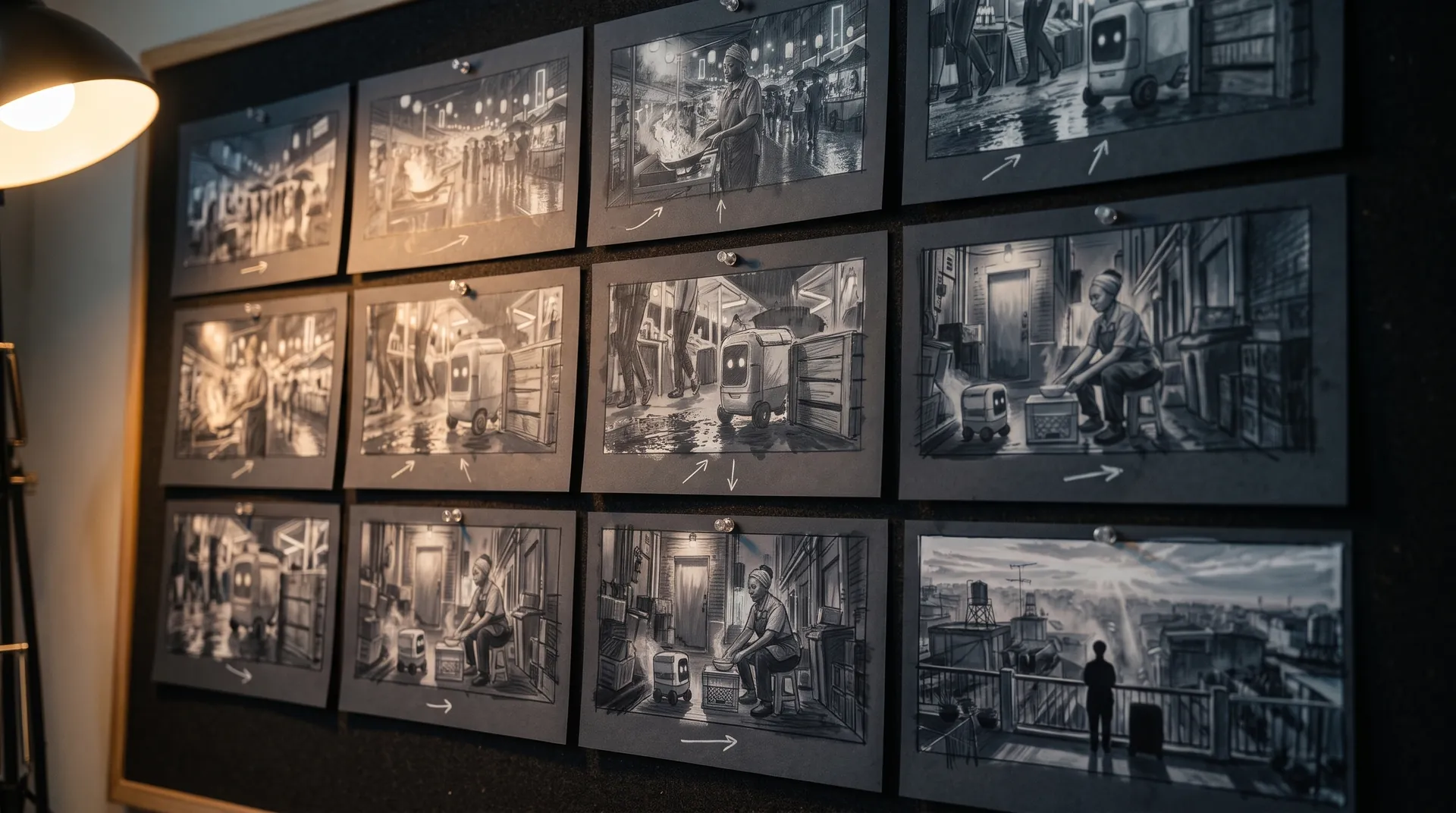
A panel for every shot, as AI stills or quick vector frames. Export it as a pitch deck.

Make motion
Titles, explainers and moving storyboards, drawn as vector animation by the AI you pick.
Characters, places, products
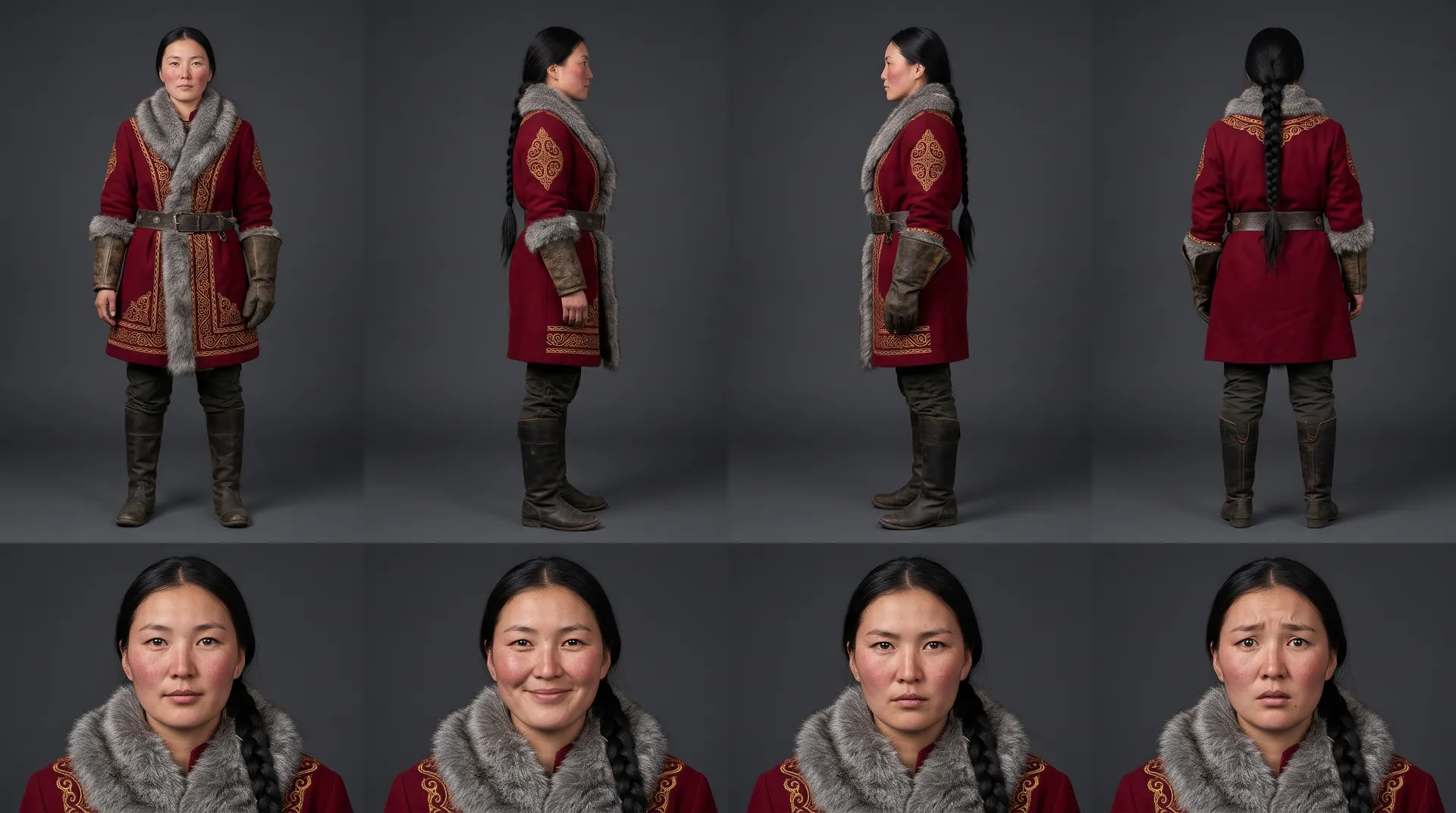
One subject in many versions, or new ideas for it. Every angle, look and light.
Your first film is one sentence away.
Free to start. Pay only for what you render.